
Settings
Change workspace identity, workflow, labels, estimates, and timer policies.
Open Settings
Choose Settings from the account menu or press G then S outside a text field. The heading names the workspace whose settings you are editing. Check that name before you change a status or label.
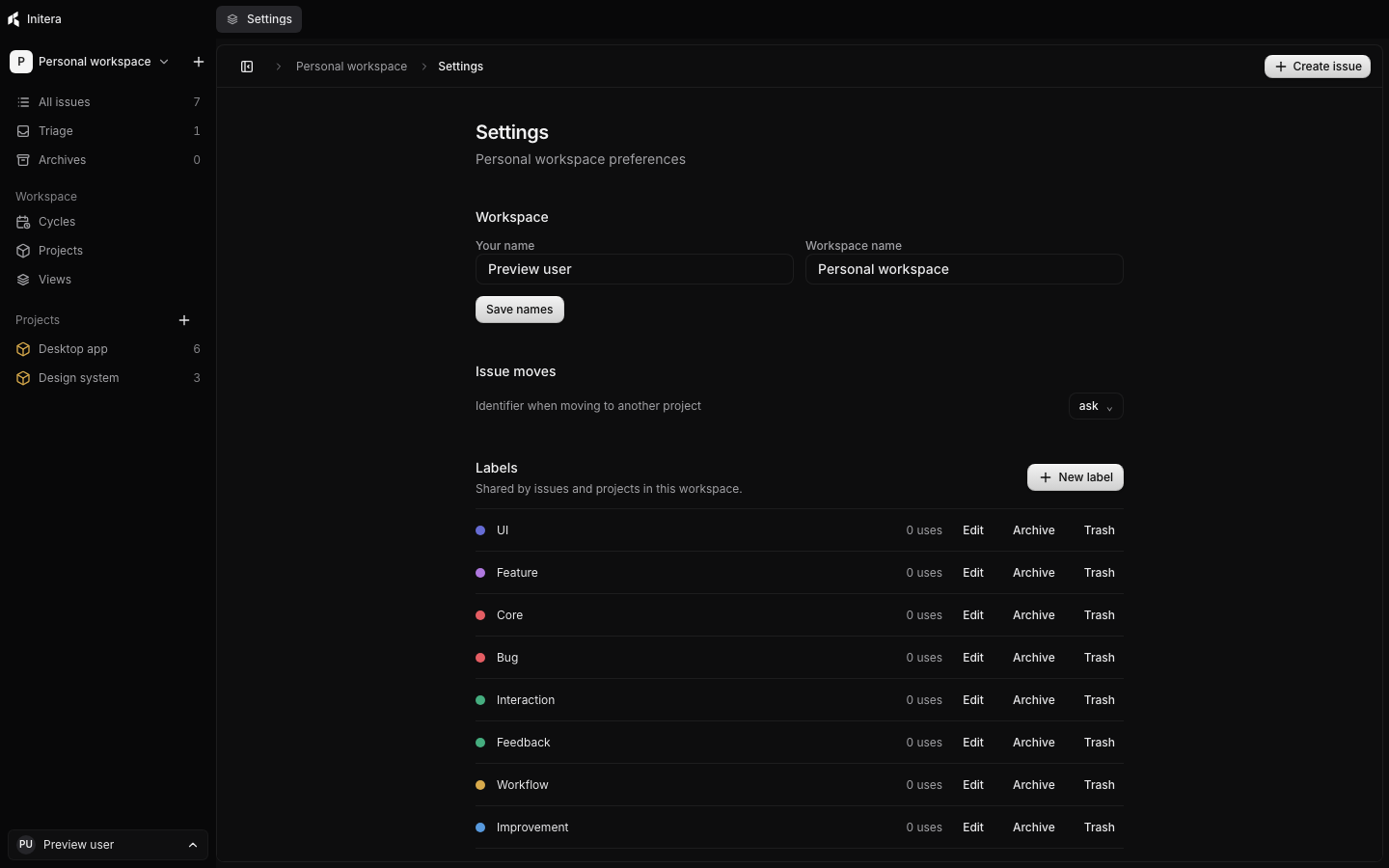
Change your name or workspace name
In Workspace, edit Your name or Workspace name, then select Save names. Your name appears on new activity and comments. The workspace name appears in the sidebar and workspace picker. The desktop app shows its data folder beneath these fields.
Choose how issue moves work
Under Issue moves, choose what happens to an issue identifier when you move the issue to another project:
| Choice | Result |
|---|---|
| Ask | The move dialog asks you to keep the identifier or generate one for the destination. |
| Keep | The issue keeps its current identifier after the project changes. |
| Regenerate | The issue receives the destination project's prefix. |
Choose a policy before you move issues whose identifiers appear in external notes or discussions.
Manage workflow statuses
Workflow statuses controls the status choices on issues and the groups on issue boards. Select New status, then enter a name, category, description, icon, and color. Save it to make it available in the workspace.
Use Make default on a backlog or unstarted status if new issues should start there. The app protects built-in statuses from editing. You can edit or archive a custom status when its usage and default state allow it. An archived status remains in the list with a Restore control.
The status category affects whether an issue counts as active or completed. Check the category before you make a status the default or use it in a cycle.
Manage labels
Labels lists the workspace labels shared by issues and projects. Select New label, enter a name and color, then select Create label. Each row shows its use count. Select Edit to change the name or color.
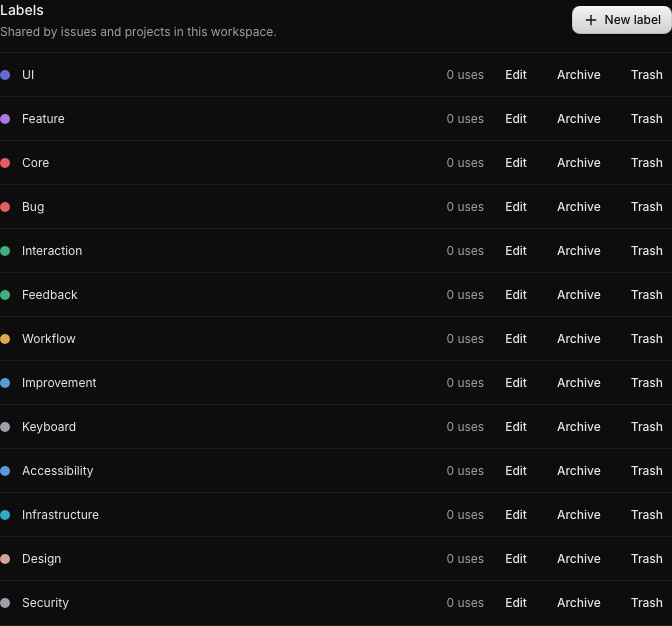
Select Archive to remove a label from normal picking while keeping it for restore. Select Restore to make it available again. Trash opens a confirmation that tells you how many issues and projects use the label. Review that count: trashing removes the label from those records. A saved view with a filter on an unavailable label shows a warning until you restore or edit the filter.
Choose appearance and issue display
Appearance offers System, Light, and Dark. System follows the device setting. The header theme control changes appearance without opening Settings.
In Issue display, use Group list by status, Show priority, and Show project for the standard issue list. An individual view can choose its own layout and display settings; read Views and search.
Choose an estimate scale
Issue estimates offers five scales:
| Scale | Choices |
|---|---|
| Fibonacci | 1, 2, 3, 5, 8, 13, 21 points |
| Linear | 1 through 7 points |
| Exponential | 1, 2, 4, 8, 16, 32, 64 points |
| T-shirt sizes | XS through XXXL |
| Time | Hours, workdays, workweeks, and workmonths |
The time scale uses eight-hour workdays, forty-hour workweeks, and 160-hour workmonths. Changing scales keeps each issue's stored value. If a value belongs to an earlier scale, the issue shows it with a previous scale note until you choose a new estimate.
Set timer behavior
The installed app adds Time tracking settings. Choose whether timers pause at the last durable checkpoint on exit or include closed time. Turn concurrent timers on if you work on different issues at the same time. Choose whether sleep counts while the app remains open.
If you turn off concurrent timers while several run, the app asks which timer to keep or whether to pause all of them. Read Time tracking for manual entries and long-gap review.
Backups and app details
The installed app shows Backups and About on this page. Use Backups to create, export, import, or restore a copy. About shows the installed version, MIT License, author Rahul Vashishtha, and Igris Labs credit.