
Views and search
Narrow an issue list, save its rules, and search across the workspace.
Filter the current list
Open All issues, Triage, or a project's Issues tab. Select the filter icon above the list. Choose a field such as status, priority, project, label, milestone, date, or a project property. Select values to include or exclude. Active filter chips appear above the results; remove a chip to drop that rule.
Use Clear filters when you want the full scope again. Check Active versus All as well: a completed issue will stay hidden in Active even after you remove filters.
If you need several rules, use the advanced group editor. Choose whether a group matches all conditions or any condition. Add a nested group for a query such as “Project is Desktop app AND (Priority is High OR Due date is this week).” Review the count before you save the view.
Choose list or board
Select Display above an issue list. Choose List for rows or Board for cards. Group by status on the standard list; a saved view can also group by priority or project. Board grouping offers status, priority, project, or no grouping.
The same popover controls whether rows show priority and project. On a board, drag a card to a group to change the matching property, or move it within a group to change its order. Open a card to inspect its full description and activity.
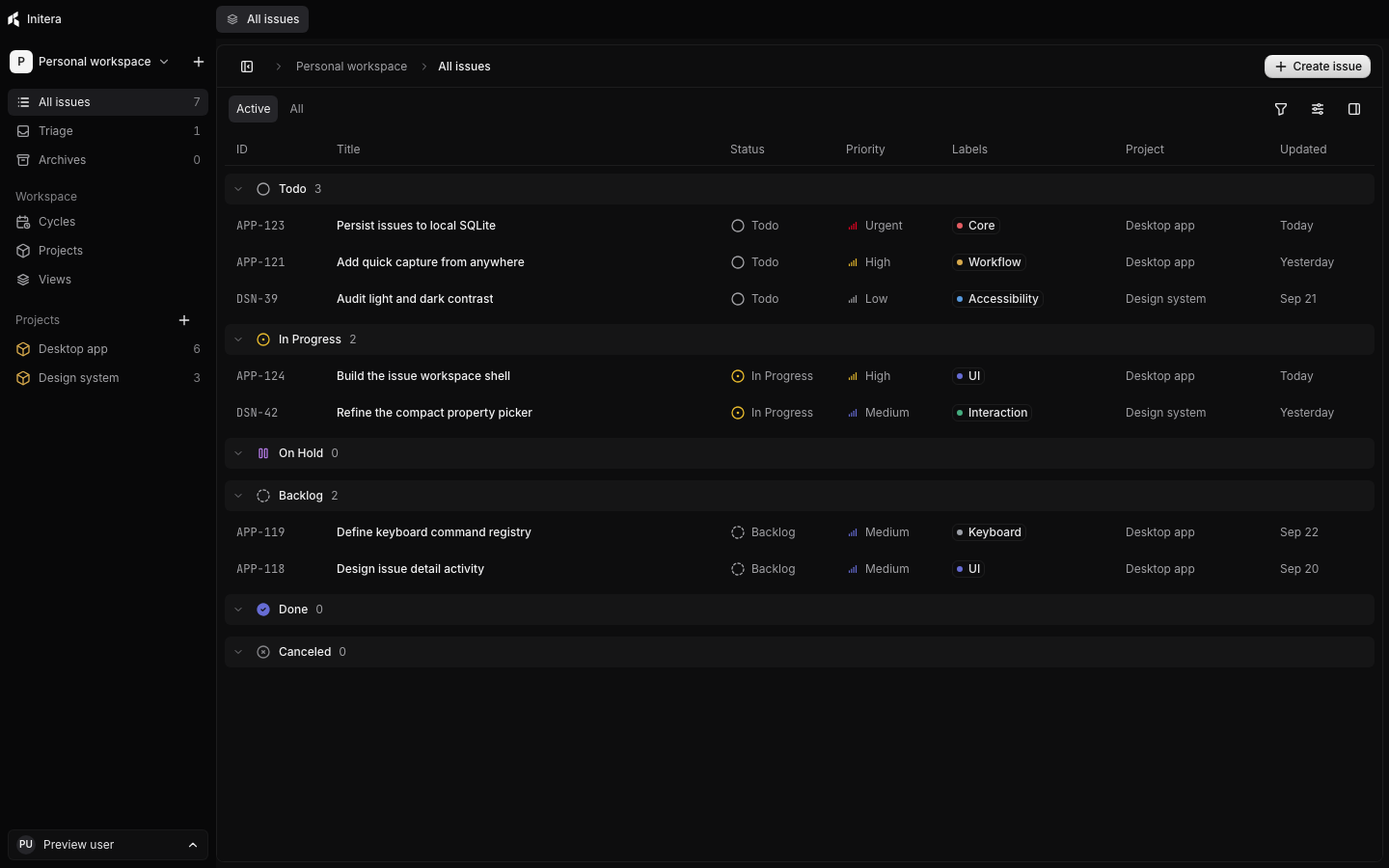
Create a saved view
Select Views → New view, enter a name, and select Create. The app opens the new view. Use its filter and display controls to choose what belongs in it. Select the pencil control to open Edit view for settings the toolbar does not expose.
In Edit view, you can:
- Add nested filter conditions and groups.
- Choose visible columns. Identifier and title stay visible.
- Set sort field and direction, row density, empty groups, and sub-issue inclusion.
- Add a description, duplicate the view, or delete it after confirmation.
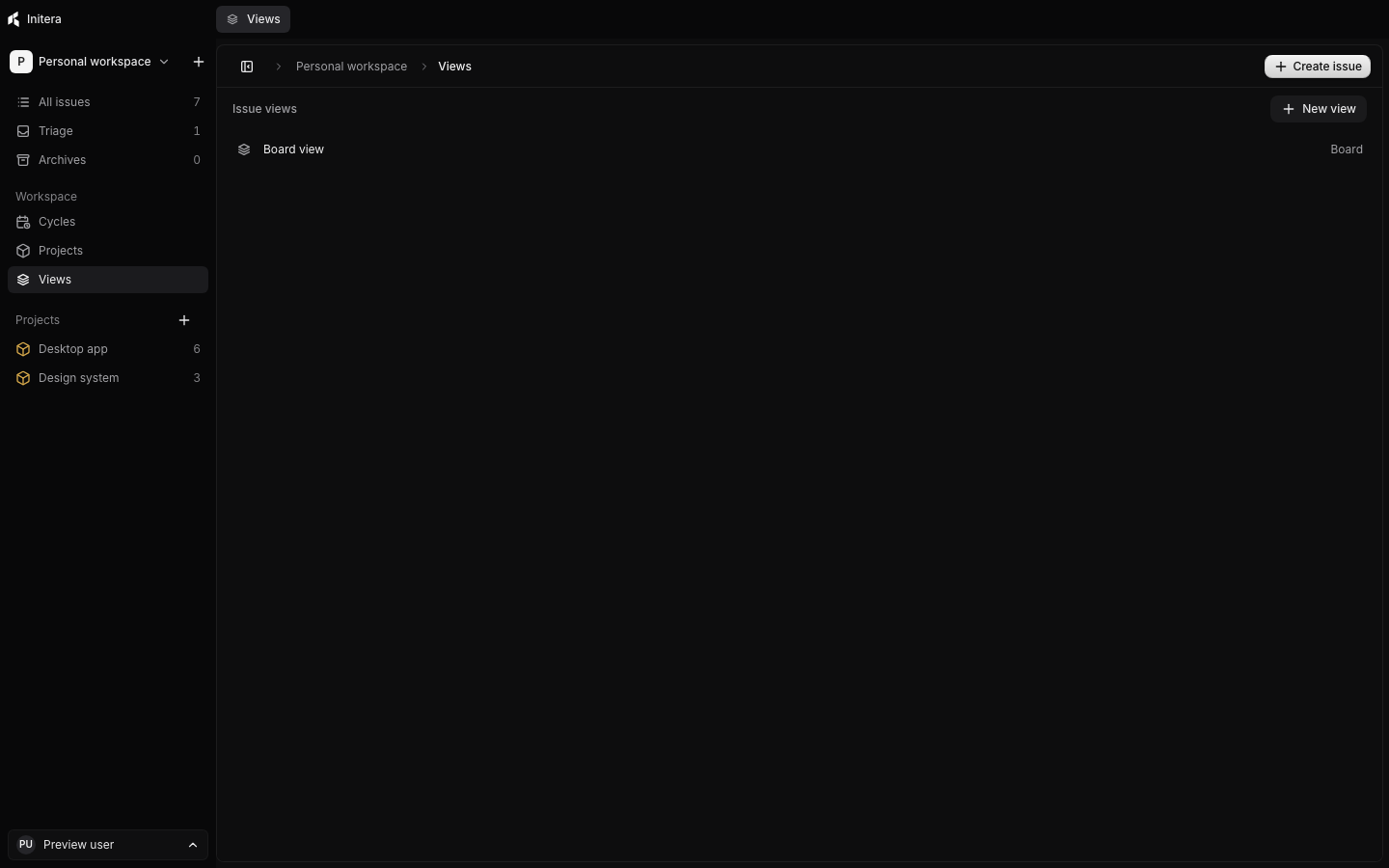
A view stores a query and layout. It does not copy issues. An issue enters or leaves the result when its properties change. The Views index shows each view's layout and matching count. Select the star on an open view to place it among favorites in the sidebar.
If a saved filter names a label that you archived or trashed, the Views page marks the label unavailable. Restore the label or edit the filter before you rely on that count.
Search the workspace
Press ⌘ K on macOS or Ctrl K on Windows and Linux. Type an issue title or identifier, project name, comment text, or project structure node. Search can find records beyond the rows loaded in the current list. Select a result to open its issue, project, or structure location.
For a focused search, press O then I for issues or O then P for projects. Use ⌘ F or Ctrl F in an issue view to find within that view. The Command bar guide explains action results and keyboard navigation.