
Create a project
Set an identifier, choose initial properties, and start a project plan.
Create a project when several issues contribute to one outcome. A project has its own summary, description, milestones, resources, updates, and issue list.
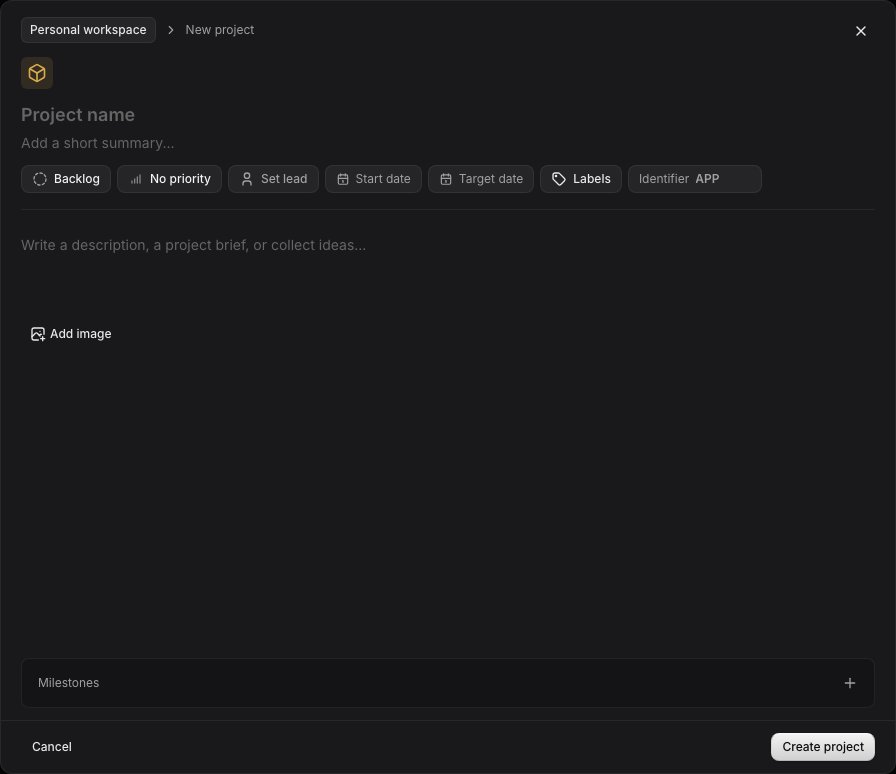
Open the project composer
Select the plus button beside Projects in the sidebar, or open Workspace → Projects and select New project. Press N then P while focus is outside a text field if you prefer the keyboard.
The composer shows the current workspace at the top. Check it before you save. Projects belong to one workspace.
Enter the project details
- Enter a name that describes the outcome, such as “Desktop release.” The name appears in the sidebar and project index.
- Add a short summary. It gives the project list and overview a one-line explanation.
- Set an identifier of two to eight letters. New issues assigned to the project use it as their prefix. Choose an abbreviation you can recognize in issue links.
- Select the icon above the name to choose a symbol and color. The icon appears beside the project in the sidebar and index.
- Choose the starting status, priority, and dates if you know them. You can edit them from the overview later.
- Write a longer brief in the description when the goal or constraints need context.
- Add the first milestone if there is a known stage or target. Otherwise, add it after the project exists.
- Select Create project.
The identifier identifies issues rather than the project name. Keep it stable once people start citing issue IDs outside the app.
After creation
Open the project from the sidebar or project index. Select values in the right-side Properties panel to change status, priority, dates, lead, or labels. Select the name or summary to edit its text. Add resources when the project depends on a specification or external link.
Assign an existing issue by opening it and choosing the new project in its Project property. Review the identifier prompt if its prefix will change. The project issue count and progress update from its assigned issues.
Read Projects for the overview and lifecycle, Project structure for modules and features, and Issue properties for moving issues.