
Project structure
Arrange modules and features, then place project issues inside them.
Open Structure
Open a project and select Structure beside Overview and Issues. Structure helps you group work inside one project. A module or feature can contain child nodes and direct issue assignments. Milestones remain separate: use them for stages or dates, and use structure for the parts of the project.
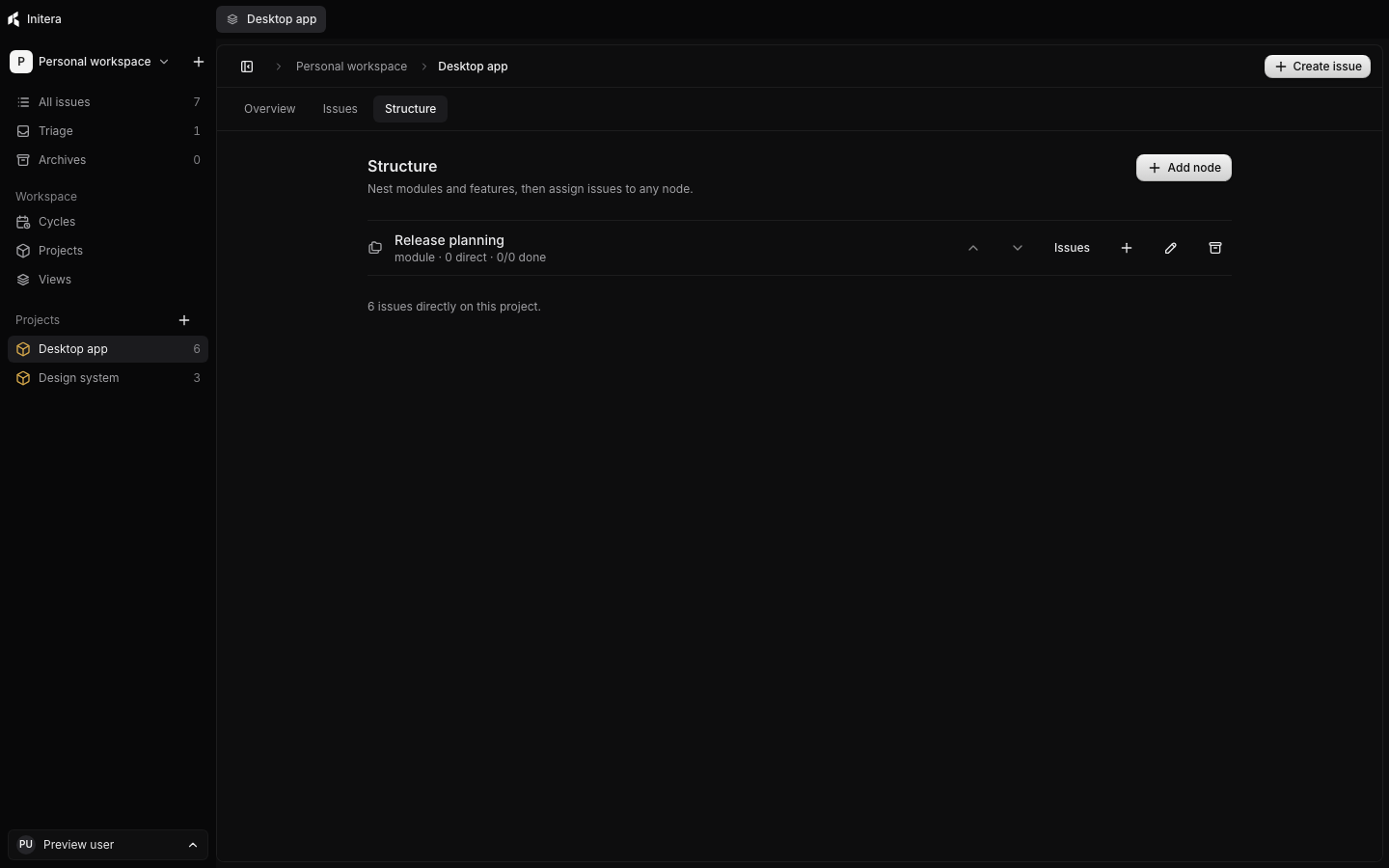
Add a module or feature
Select Add node, enter a name, and choose Module or Feature. Choose a parent if this node belongs inside another node. Save it. To add a child from an existing row, select that row's plus control; the dialog starts with the parent selected.
Use names that describe a part of the product or delivery. For example, put “Search” and “Keyboard navigation” under a “Desktop shell” module. You can edit a node name or kind after creation.
Assign issues
Select Issues on a node row. Search for a project issue and select it, then choose Done. The row shows how many issues belong to it and how many have reached a completed status.
The picker uses issues from this project. Move an issue into the project before you assign it to a structure node. An issue can stay directly on the project without a node; the Structure page shows that count below the nodes.
Change order or hierarchy
Use the up and down controls on a node row to change its place among siblings. Use the edit control to change its parent. A node cannot become its own descendant.
Reordering affects the project plan, not issue identifiers or status. Check the tree after a move if you use parent and child nodes to report progress.
Archive a subtree
Choose the remove control on a node and select Archive subtree. This keeps the node and its descendants together in the archived section. Use Restore there when you need the branch again. Archiving structure does not delete the project issues assigned to it.
Dissolve a node
Choose Dissolve this node when you want its contents but no longer need the container. The confirmation explains that the app moves its direct issues and child nodes to the parent. Confirm Dissolve node to apply that change.
The Structure page keeps a restore control for the dissolved membership. Use it if you need the old node and assignments back. Check the resulting tree before you continue adding work.