
Issue properties
Change status, priority, estimate, project, milestone, labels, and dates.
Open an issue from the list or board. Its properties appear in the detail view. Select a value to change it. The current choice has a check mark in a picker.
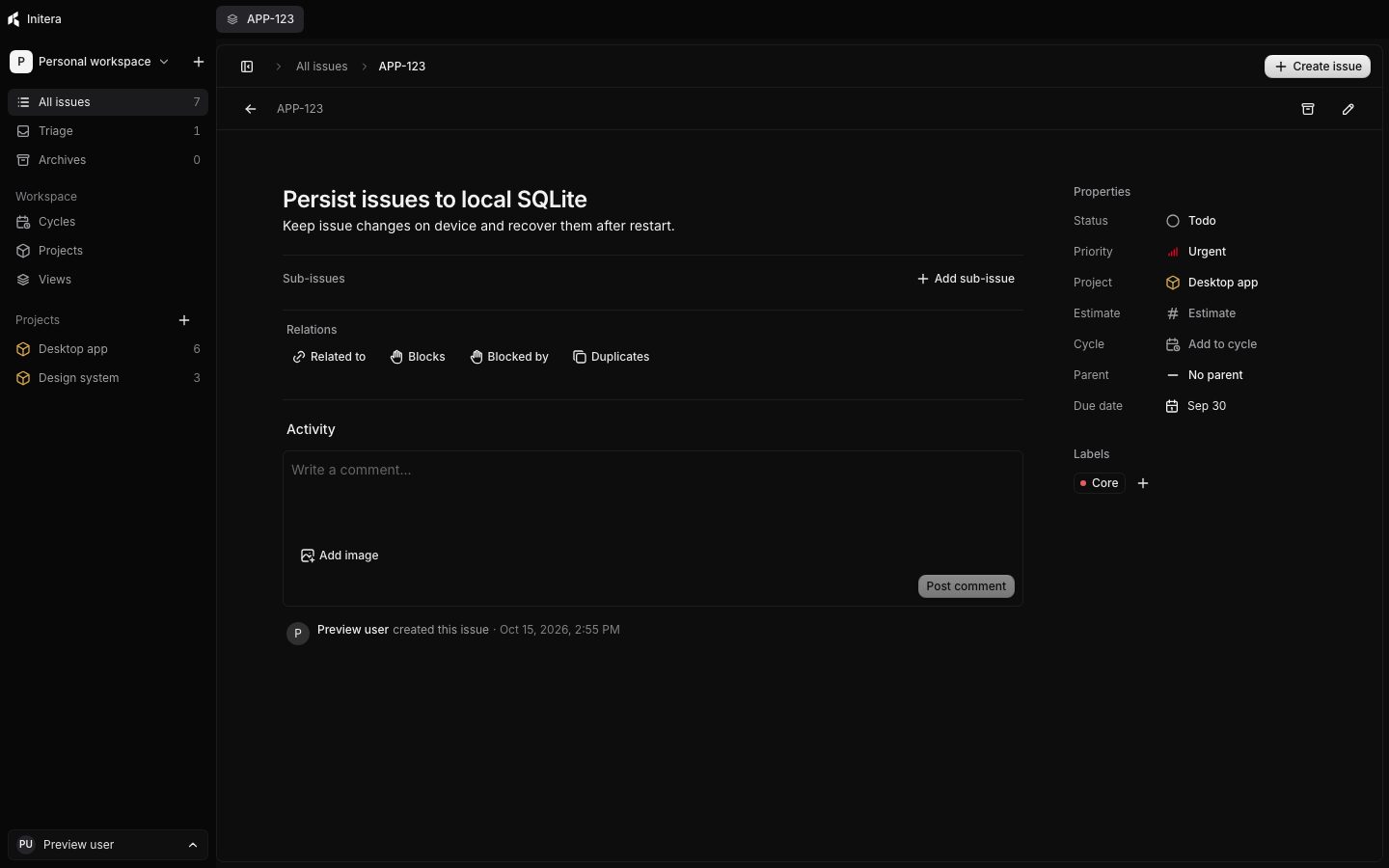
Status
Status describes where the issue sits in the workspace workflow. Select the status value and choose another entry. The board groups issues using the same workflow categories and icons as the picker. You can also drag a board card into another status column.
Press S while an issue is open to choose a status from the keyboard. Open Settings → Workflow statuses to change the available names and order. Existing issues retain a status until you move them or change the workflow.
Priority and estimate
Select Priority to choose No priority, Low, Medium, High, or Urgent. Press P on an open issue for the same picker. Priority affects filters and sorting; it does not mark work complete.
Select Estimate to size the work. The choices come from the scale in Settings. Available scales include points, named sizes, and time units. Changing the workspace scale changes future choices; it does not rewrite estimates already saved on issues. Press Shift E to open the estimate picker.
Project and milestone
- Select the issue's Project property.
- Search for a project by name and select it, or choose Unassigned to remove the project.
- If a move changes the identifier prefix, review the prompt. Your workspace's issue-move setting determines whether the app asks, keeps the current identifier, or assigns the new prefix.
- Select Milestone after choosing a project if this issue belongs to a particular stage.
A milestone belongs to one project. Moving the issue to another project clears an incompatible milestone. The project's issue count and progress then follow the new assignment.
Labels
Select Labels, search the workspace list, and select each label you need. Selected labels show a check mark. Select one again to remove it. Labels can group work across projects, such as Bug, Accessibility, or Design.
Open Settings → Labels to create or edit a label. Archiving a label removes it from the active picker while keeping its history. See Settings for the label lifecycle.
Start date and due date
Select the date field to open a calendar. Start date records when work is planned to begin; Due date records a deadline. A due date must be on or after the start date. You can clear either date from the issue editor.
An estimate is the expected size of work. A date is a point in the calendar. Time entries record work already done. Use Time tracking for a timer or manual entry.
Parent and relations
Select Parent issue to move an issue under another one or return it to the top level. The Relations section connects issues that block, duplicate, or relate to each other. Read Sub-issues and relations for the steps and the effects on child issues.