
Create an issue
Use the issue composer, set initial properties, and recover unfinished work.
An issue tracks one piece of work. It needs a title. You can add the other details when you create it or after you open it from the issue list.
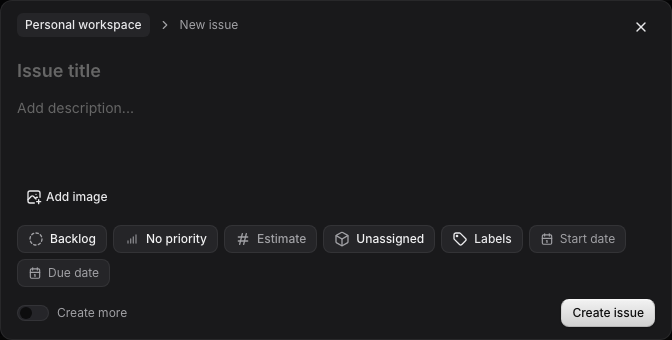
Open the composer
Use whichever entry point fits where you are working:
- Select Create issue at the top right of the app.
- Press C while focus is outside a text field or editor.
- Open the command bar with ⌘ K or Ctrl K, type “Create issue,” and press Enter.
- Open a parent issue and select Add sub-issue to create a child with its parent already set.
The composer shows the workspace name at the top. Check it before saving if you work in several workspaces. The title field receives focus when the dialog opens.
Fill in the issue
- Enter a short title that says what needs to happen. For example, “Check the import review screen on Windows” is easier to recognize in a list than “Import.”
- Add steps, context, links, or acceptance checks in the description. Leave it empty if the title gives enough context for now.
- Select the Status pill. The initial status comes from your workspace workflow or the view where you opened the composer.
- Set Priority and Estimate if you already know them. Neither is required to save.
- Select Project if the work belongs to a project. The Milestone choice follows the selected project. Changing the project clears a milestone that belongs to the previous project.
- Add Labels, Start date, or Due date when they help you organize the work.
- Select Create issue.
A due date cannot be earlier than the start date. The composer shows an error and keeps your input if a required value is missing or a date is invalid.
After you create it
The app assigns the next issue identifier and shows a confirmation with that identifier. A project issue uses the project's identifier prefix. The composer closes and opens the issue list or triage view, unless you created the issue from a context that keeps the current page open.
Open the issue row to change its properties, add a comment, track time, or link related work. See Issue properties and Edit issue content.
Create several issues in a row
Turn on Create more before saving. After each save, the composer clears the title, description, estimate, labels, and dates, then focuses the title field again. It keeps the current project, milestone, status, and priority so you can enter related work without repeating those choices.
Turn Create more off before the last save if you want the dialog to close. Review the retained properties each time; the next issue might belong to a different project or need another status.
Recover an unfinished issue
The composer keeps a local recovery draft while you type. If you close the dialog or the app stops before the issue is saved, reopen Create issue in the same workspace to continue. A draft for a sub-issue stays separate from the top-level issue draft and is tied to its parent.
A recovery draft is unfinished work, not an issue in the database. Create the issue to give it an identifier and place it in the list. If saving fails, the composer stays open with your input and shows the error.