
Command bar
Search workspace records and run actions without leaving the keyboard.
Open and navigate
Press ⌘ K on macOS or Ctrl K on Windows and Linux. You can also select the search control in the app. Start typing to filter results. Use Arrow Up and Arrow Down to move the selection, Enter to run it, and Escape to close the bar.
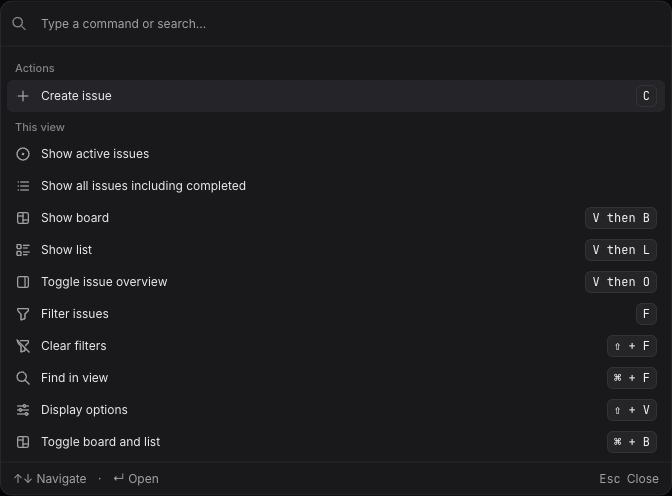
The suggestions reflect the page you have open. On an issue list, you may see filtering, layout, and display actions. On an issue, you may see status, priority, relations, and archive. On a project, you may see dates, lead, labels, resources, milestones, and updates.
Search records
Type an issue identifier or title to open an issue. You can also search for a project, view, cycle, comment, or project structure node. A comment result opens its issue at the matching activity entry. A structure result opens the node in its project.
Search runs against workspace records beyond the issue or project rows that the current page has loaded. If a result does not appear, check the workspace name in the sidebar and try a distinctive word from its title or identifier.
Narrow the search mode
Use O then I to open issue search, or O then P for project search. In a narrowed mode, press Backspace on an empty search field to return to all results. You can also choose an Open issue or Open project action from the command bar.
Press / outside a text field to start search. Use ⌘ F or Ctrl F when you want to find within an issue view instead of the workspace.
Run an action
Search for the action by name, select it, and press Enter. Actions that need a value open their picker or dialog after the command bar closes. For example, Change issue status opens the status picker on the issue you have open.
The shortcut appears at the right of an action when one exists. Press ? outside an editor to browse the shortcut list. The Keyboard shortcuts page lists the application keys by location.
Handle focus
Page shortcuts do not take letters from a text field or rich text editor. Finish typing, press Escape or move focus out, and try the shortcut. While the command bar is open, type a search or choose a result with Enter. Close it before using a shortcut that belongs to the page behind it.