
Cycles
Set a work period, assign issues, and decide where unfinished work goes.
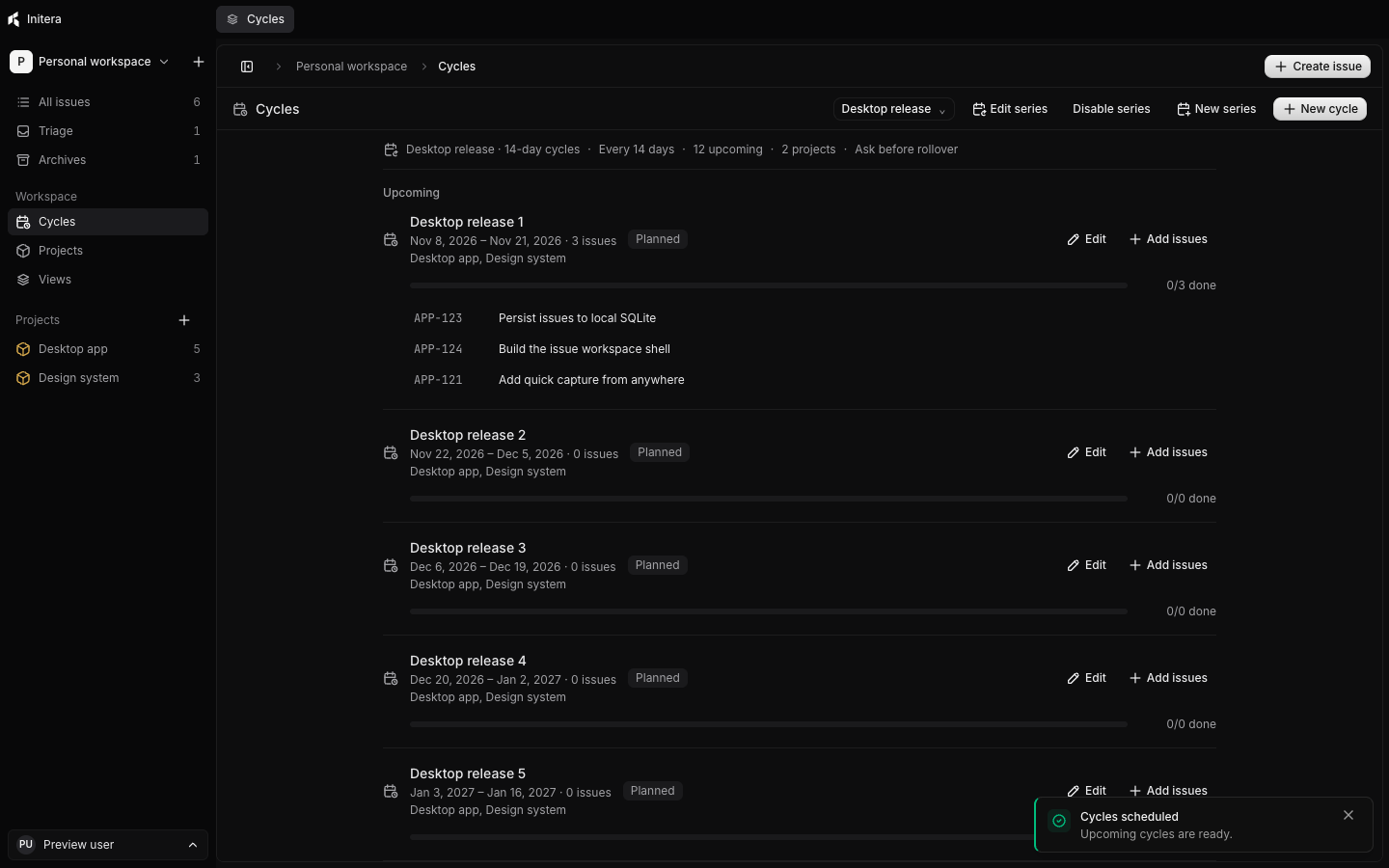
See current and past cycles
Select Cycles under Workspace. The page groups cycles into active, upcoming, and completed work. Use the series selector when your workspace has more than one repeating schedule. A cycle records its own issue membership; an issue can keep its project while you add it to a cycle.
Set up a series
Select New series, or Set up cycles in an empty workspace. Enter a series name, the number of days each cycle lasts, and how often a cycle starts. For example, a fourteen-day duration with a fourteen-day interval creates consecutive two-week periods. A shorter duration than the interval leaves a gap.
Choose the first start date, local start time, and time zone. Then choose what should happen to unfinished work: Ask me, Move unfinished work, or Leave work in the old cycle. If the series should cover selected projects, select them under Projects in these cycles.
Before saving, read Schedule preview. It shows the first three upcoming periods and their date boundaries. If you edit a series, it also shows the current dates beside the proposed dates. Resolve any warning about assigned issues outside the selected project scope before you save.
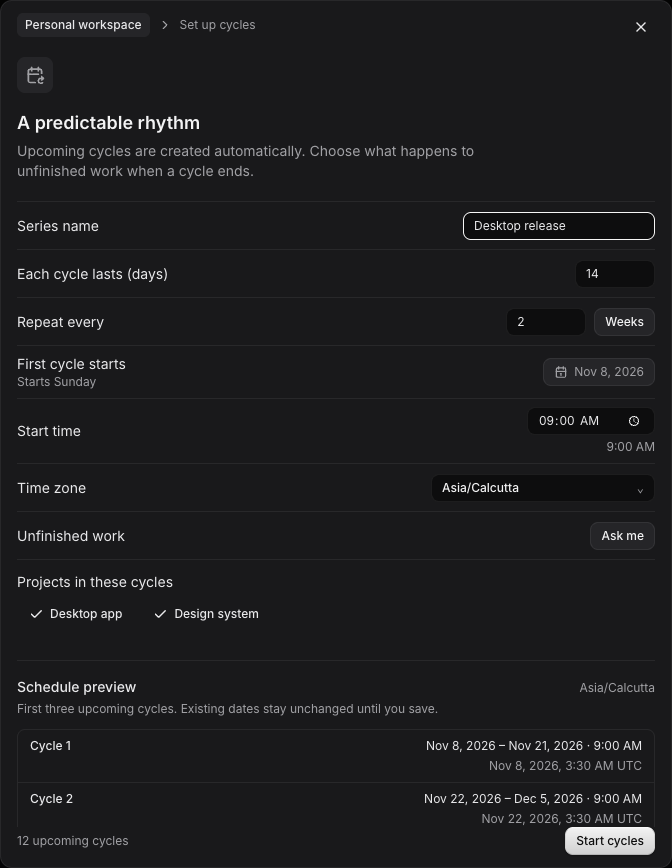
Select Start cycles for a new series or Save schedule for an edit. An enabled series keeps twelve upcoming cycles available. You can create more than one series in a workspace.
Add or remove issues
Open a cycle and select its issue control. Search by title or identifier, select the issues you want, and choose Done. Use the same control to remove an issue from the cycle. The cycle progress compares completed issues with its total assignments.
A cycle scoped to one or more projects accepts issues from those projects. If a target issue is missing from the picker, check its project and the series scope. Change the project scope in Edit series if the schedule should cover that work.
Create a manual cycle
Select New cycle when the period does not belong to a repeating schedule. Enter a name, description, start and end dates, local times, and time zone. The end must fall on or after the start. Select a project scope and unfinished-work policy if you need them. Add issues after you create the cycle.
You can choose a later manual cycle as a successor when you edit a manual cycle. The successor gives rollover a destination without a repeating series. The picker lists eligible future manual cycles, not completed cycles.
Complete a cycle
Open a cycle and select Complete cycle. Completed and canceled issues remain in its history. For unfinished work, choose Leave unfinished issues in this cycle or another open cycle. If you choose a destination, select the specific issues to move before you confirm.
Check the issue list in the destination cycle after completion. The source cycle keeps its completed record and progress count.
Edit or pause a series
Choose a series in the selector, then select Edit series to change its schedule or Disable series to stop generating future periods. Enable series resumes generation. Disabling a series keeps existing cycle history.
If the app has been closed through many scheduled periods, the Cycles page shows catch-up progress while it reconciles elapsed occurrences. Keep the app open until that progress finishes. Review active cycle dates and unfinished issue assignments afterward.