
Quick start
Set up a workspace, create an issue and project, and find your work again.
Start with a workspace
On first launch, enter Your name and a Workspace name. Use your own name: comments, project updates, and activity records show it. A workspace holds its own issues, projects, labels, cycles, views, and settings.
After setup, check the name at the top of the left sidebar before you create work. If you use more than one workspace, this check prevents you from putting an issue in the wrong place.
To add a workspace, select the plus button beside the workspace name. To switch, select the name and choose a workspace from the menu.
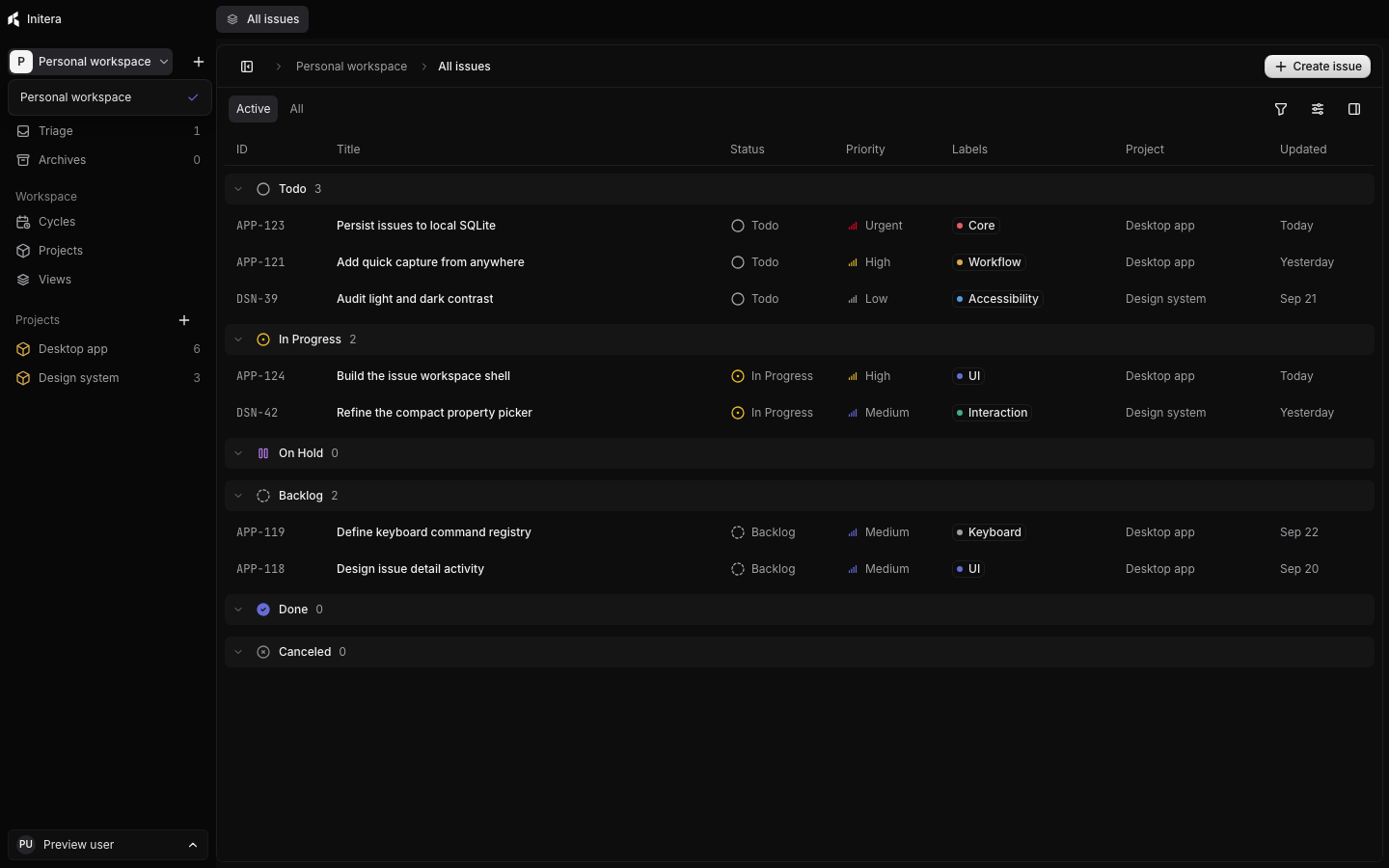
Read Workspaces for switching, identity, and local data storage.
Create your first issue
- Select Create issue in the top right. Press C if you prefer the keyboard and focus is outside a text field.
- Enter a title that describes the work, such as “Review the export dialog.”
- Choose a status and priority. You can leave the project, labels, estimate, and dates empty.
- Add context in the description if the title needs an explanation.
- Select Create issue.
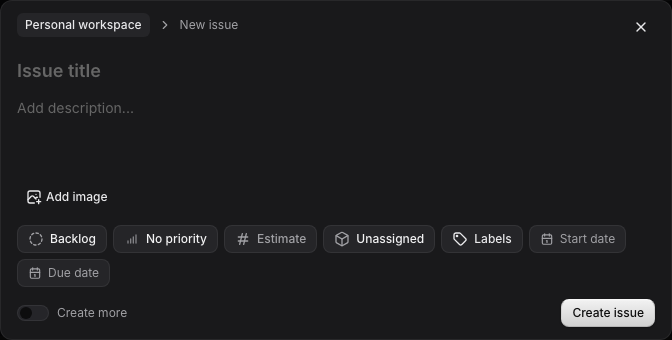
After you save the issue, find it in All issues and open its row. Its identifier appears near the title. Use that identifier when you search, discuss the work, or link another issue. Select a property in the right panel to change it. Use Edit issue for the title, description, and dates. See Create an issue for the full composer flow and draft recovery.
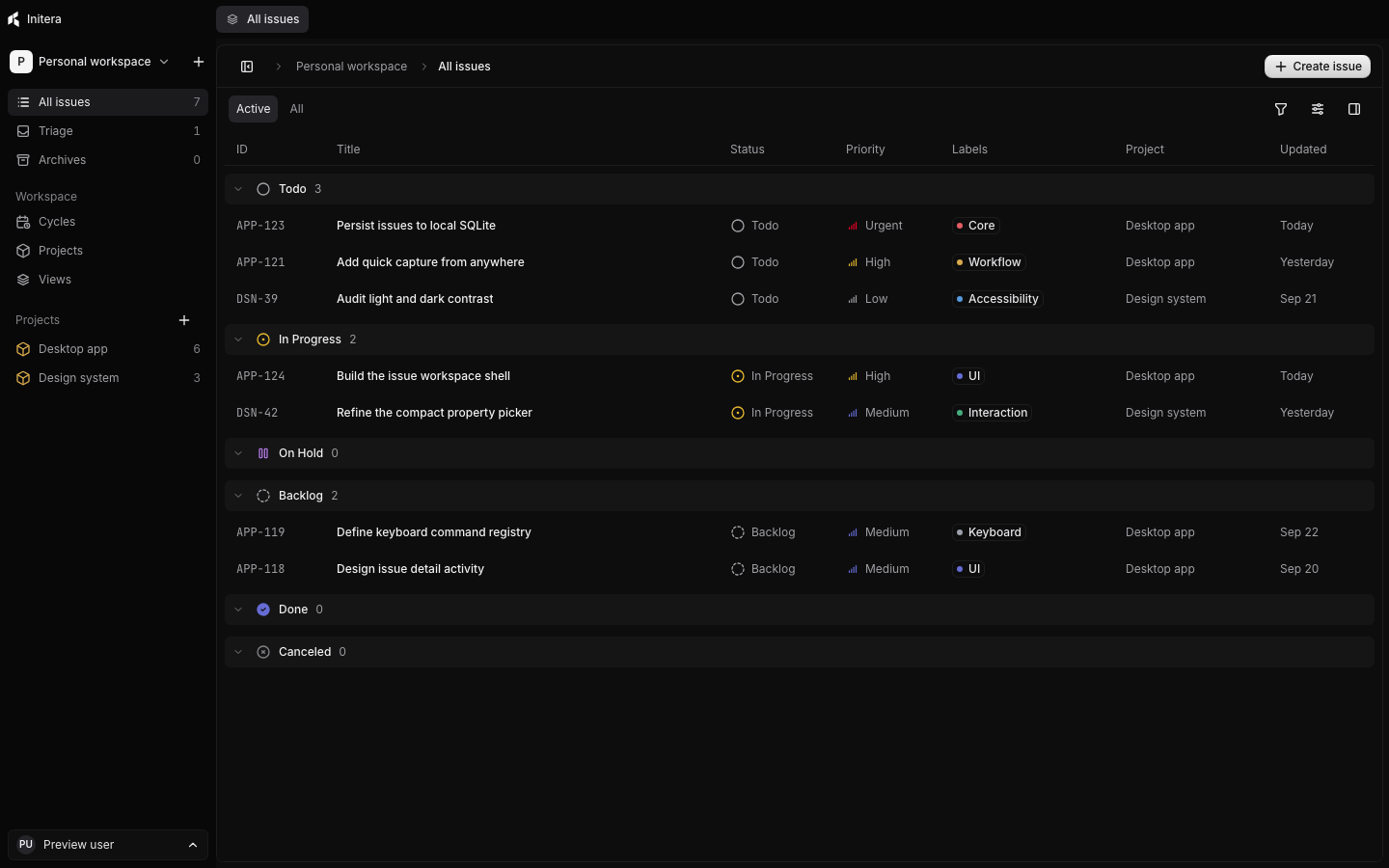
Open All issues in the sidebar to see the issue among other work. Active shows unfinished issues; All includes completed work. Use the filter button when the list grows.
Add a project
Create a project when several issues serve one goal. Select the plus button beside Projects in the sidebar, or open Projects and select New project. Enter a name and a two-to-eight-letter identifier. The identifier becomes the prefix for issues you assign to that project.
Add a summary, dates, or a milestone if you know them. You can fill the rest in after creation. Open your issue, select its Project property, and choose the new project. The app asks how to handle the issue identifier if the move changes its prefix. Your workspace setting controls whether that question appears.
Read Create a project for every field in the composer. The Projects guide covers the overview, resources, milestones, structure, and project updates.
Find your work
Press ⌘ K on macOS or Ctrl K on Windows and Linux. Type an issue identifier, issue title, project name, or action. Use the arrow keys to select a result and Enter to open it. Press Escape to close the command bar.
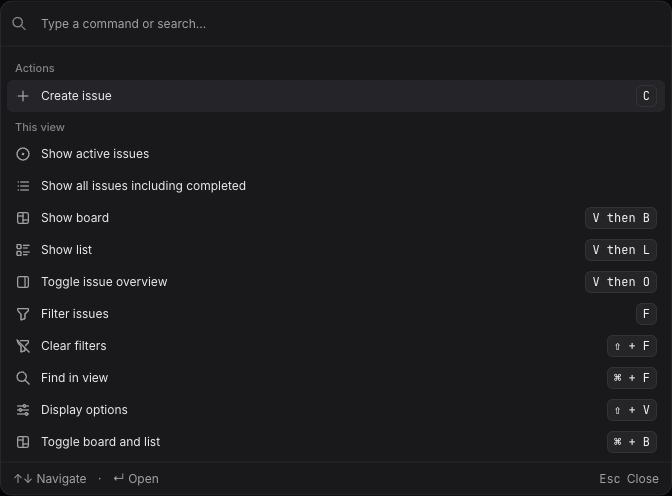
Press ? outside a text field to see available shortcuts. The Command bar and Keyboard shortcuts guides cover search modes and page actions.
Save a copy of your work
In the installed desktop app, open Settings → Backups. Select Create backup for a restorable copy in the app data folder. Select Export workspace when you need a file to keep elsewhere or move to another computer. The export includes uploaded images. See Backups and restore before you import or restore a file.